

It’s SP Page Builder update time!
With SP Page Builder v6.3.1, we are introducing a handy new feature along with several helpful enhancements and fixes to make your page-building workflow even smoother.
From better dynamic content handling to improvements in galleries, forms, and overall stability, this update focuses on giving you more control and a more reliable editing experience.
So, let’s dive right into everything new and improved in the latest version!
SP Page Builder v6.3.1 Changelog:
New: Introduced Page Versioning to restore previously saved changes on pages (Only for Pro)
Update: Added alt text support to the Dynamic Content Gallery field (Only for Pro)
Update: Implemented Button option for Dynamic Content Link field (Only for Pro)
Update: Added hover description support to the Gallery addon (Only for Pro)
Fix: Resolved decimal formatting issues in the Dynamic Content number field (Only for Pro)
Fix: Fixed select field height inconsistency in the Form Builder addon (Only for Pro)
Fix: Addressed CSS rendering issues affecting sections in certain cases
Fix: Resolved a lazy loading conflict that affected background video playback
Fix: Improved non-English language rendering in the Comment addon (Only for Pro)
Fix: Fixed text truncation in the frontend editor for the Dynamic Content Text addon (Pro)
Fix: Removed unintended table column duplication
Fix: Restored Dynamic Content filter visibility when items are moved to trash (Only for Pro)
Fix: Improved SEF crawl behavior for Dynamic Content pages (Only for Pro)
Preview, Restore, and Manage Page Edit History with Page Versioning
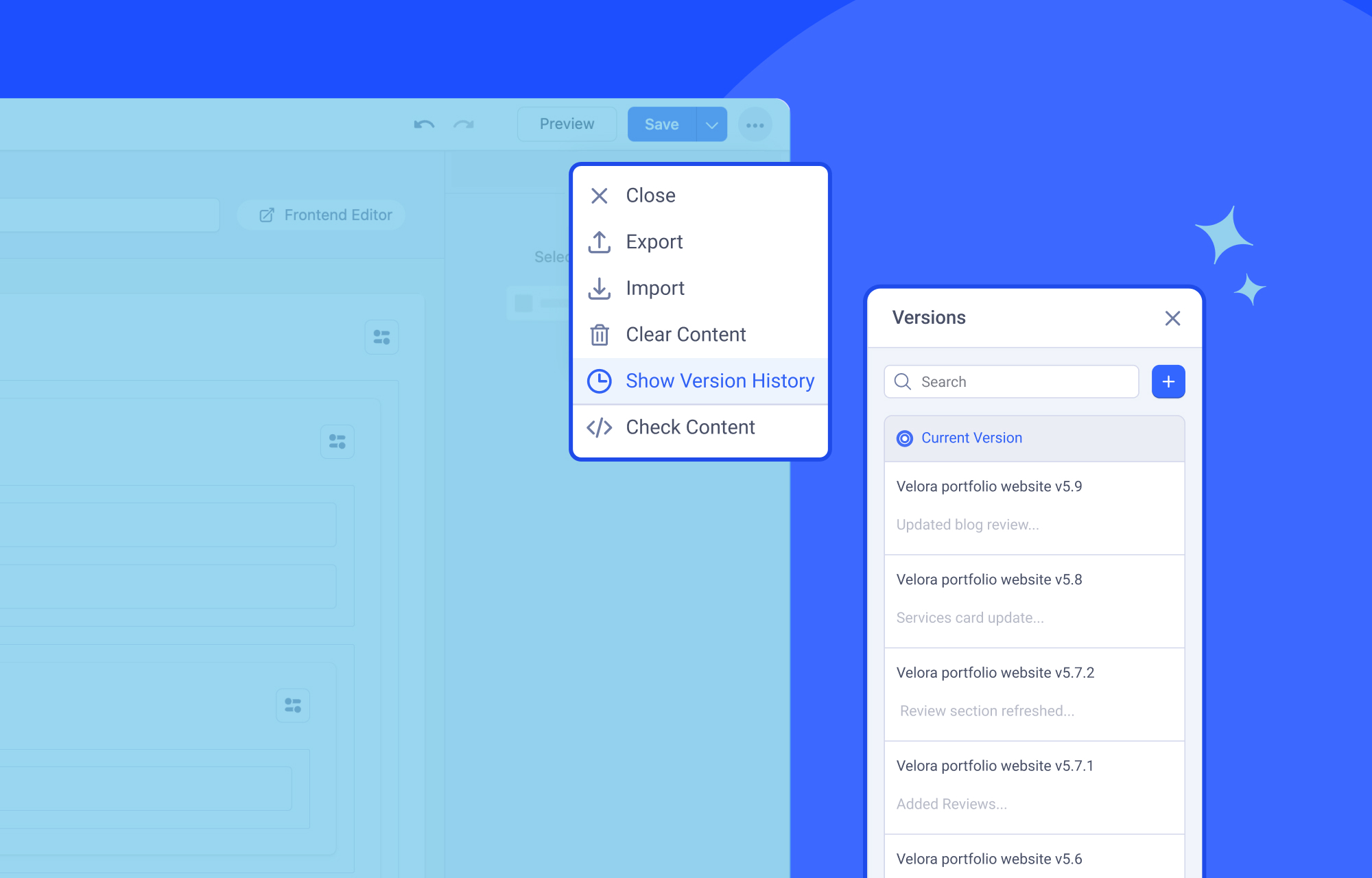
Ever wished you could recover a layout after making changes you later regretted? With the latest SP Page Builder update, you can!
Introducing Page Versioning, a feature that lets you bring back previously saved layouts whenever you need them.
Page Versioning works by storing a saved version of the layout. As you continue editing and updating the page, these saved versions build a history you can revisit anytime. From the version list, you can quickly review earlier versions and restore the one you want.
Just remember to click Save whenever you make changes. Each save creates a new version, giving you a reliable way to return to an earlier layout whenever needed.
With Page Versioning, you can:
Create new versions manually: Besides creating versions automatically when you save your layout, you can also manually create a new version at any time. Simply click the “+” icon, add a version name and a note, and save it to access whenever needed.
Preview Versions before Restoring: Before restoring a page, you can preview its previous versions to see exactly what changes were made. This helps ensure you select the right version without losing any important content or layout adjustments.
Restore page versions: If you need to roll back changes, simply select any earlier version from the list and restore the page to that design.
Rename or delete versions: Keep your version history organized by renaming versions for clarity or removing ones you no longer need.
Manage versions from frontend and backend: You can manage page versions with ease by adding, restoring, renaming, or deleting them directly from both the frontend and backend editors of SP Page Builder.
Now it’s your turn. Try out this new feature and see how it simplifies your workflow.
For a deeper understanding, feel free to explore the Page Versioning documentation.
Other Notable Updates and Fixes
Besides page versioning, SP Page Builder v6.3.1 brings in some new meaningful updates, including:
Alt text support for the Dynamic Content Gallery field: When adding an image using the Dynamic Gallery field, alt text can be entered to describe the image and improve accessibility.
Implemented button styling options for Dynamic Content link type values: Dynamic content links can now be displayed as buttons, with options to control the link text and the button's overall appearance. Check out the documentation to learn more.
Show image descriptions on hover with the Gallery addon: While using the Gallery addon, you can now toggle the option to display the image item description when a user hovers over the image.
Improved non-English language rendering in the Comment addon: This latest fix improves how non-English comments made by users appear on your site, allowing for more multilingual diversity.
Update Now
While we have highlighted the most significant improvements in this blog, you can explore the official changelog to see further changes included in this update.
That’s it for now! Head over and download the latest update, and let us know your thoughts and suggestions in the comments below!
